Move from your spreadsheet to PestPaid in 5 minutes
All you need is your customer spreadsheet. You won’t need a developer, a support call, or anyone else’s help — export to CSV, map your columns, and you’re in.
Step 1 — Export your spreadsheet to CSV
PestPaid imports a .csv file. Here’s how to make one from Google Sheets or Apple Numbers.
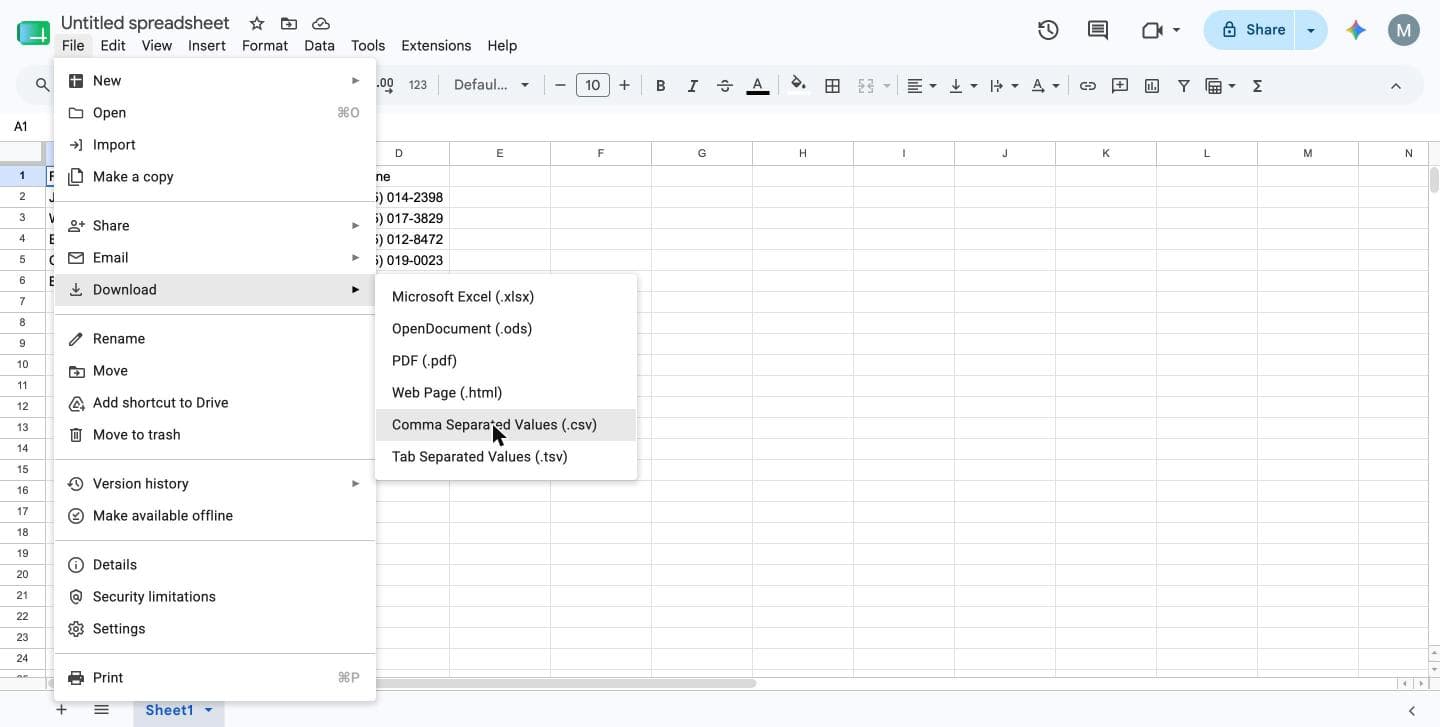
Google Sheets
File → Download → Comma-separated values (.csv)
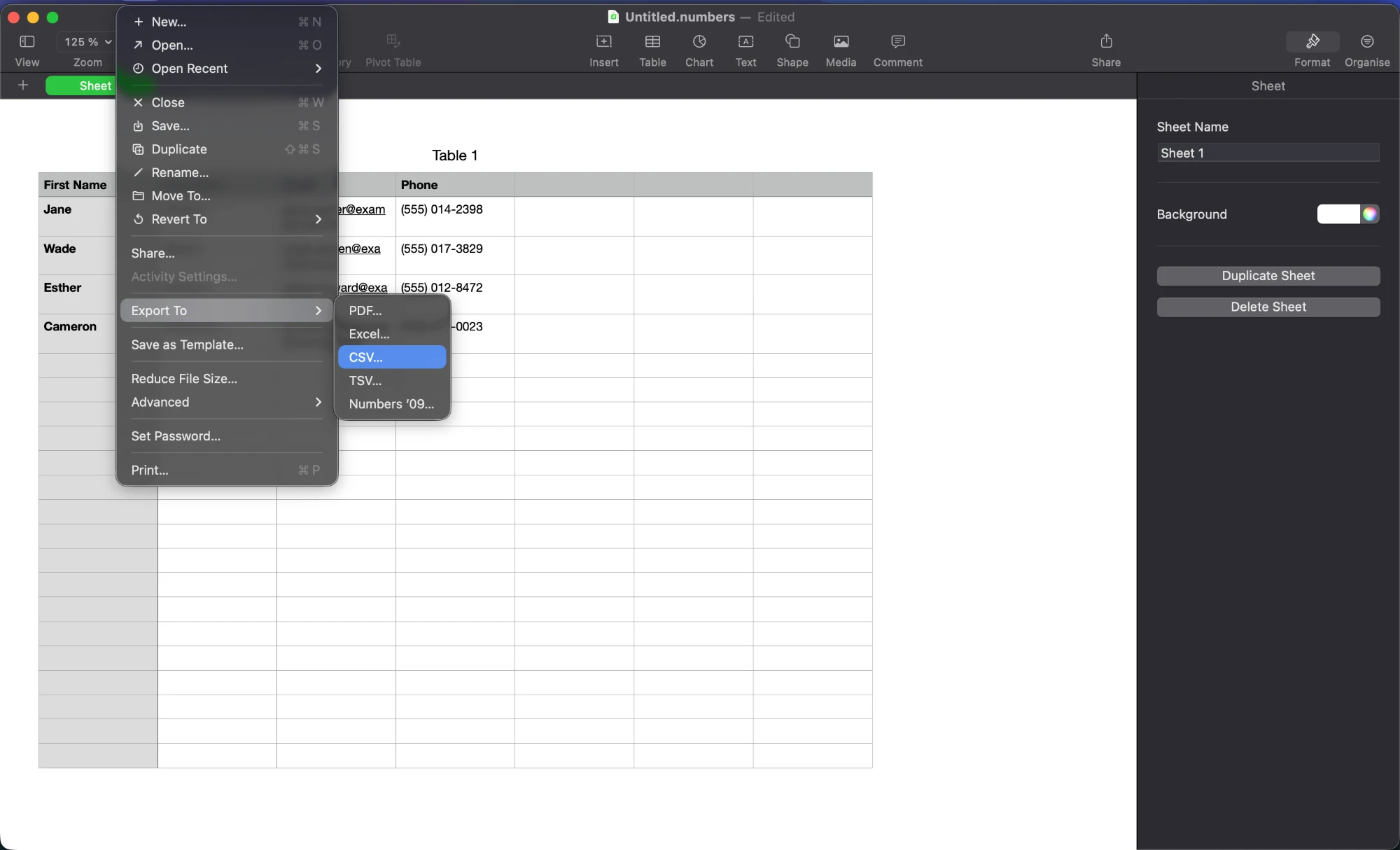
Numbers
File → Export To → CSV…
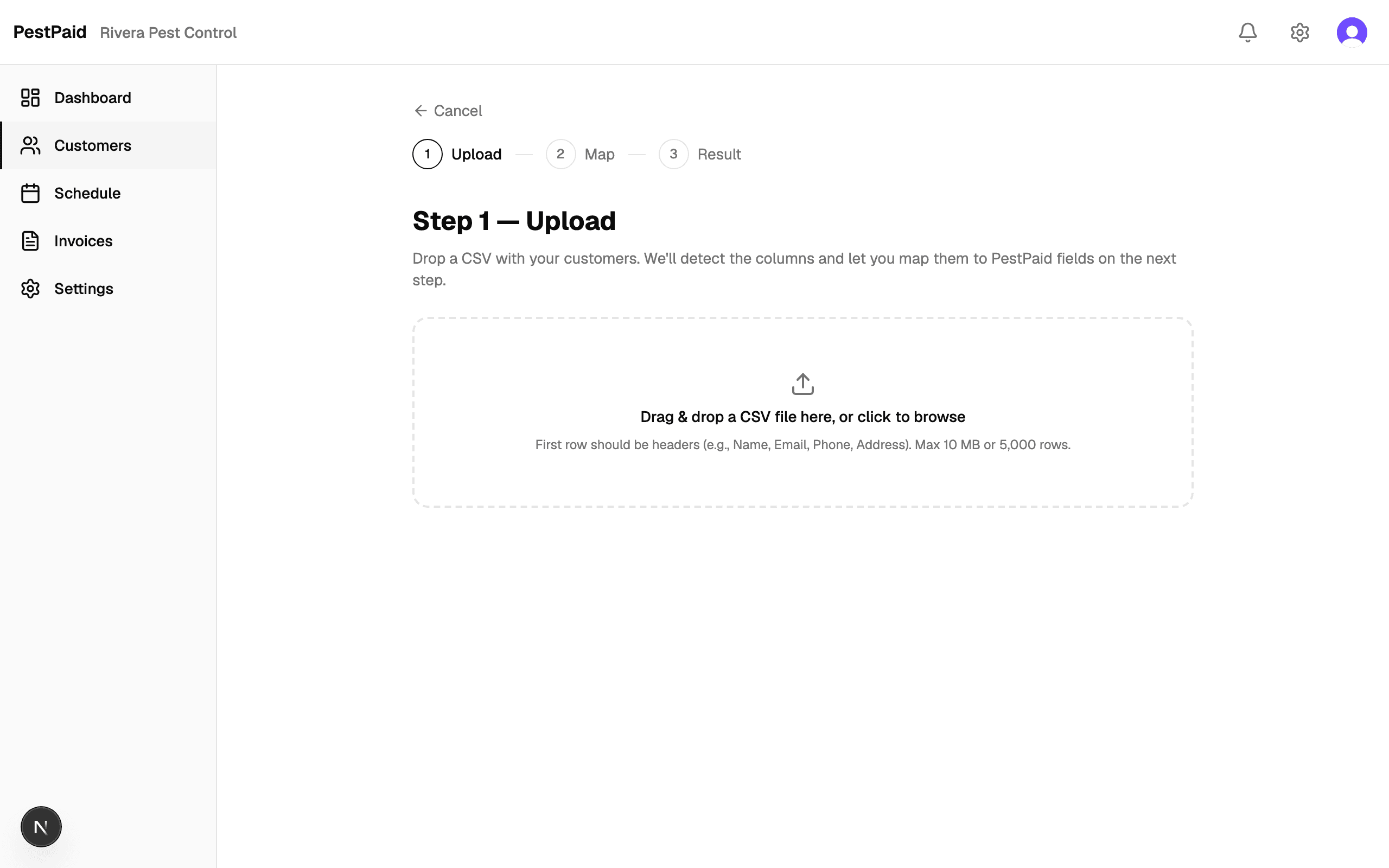
Step 2 — Open the PestPaid CSV import
From the Customers tab, click “Import CSV” and drop your file on the upload screen.
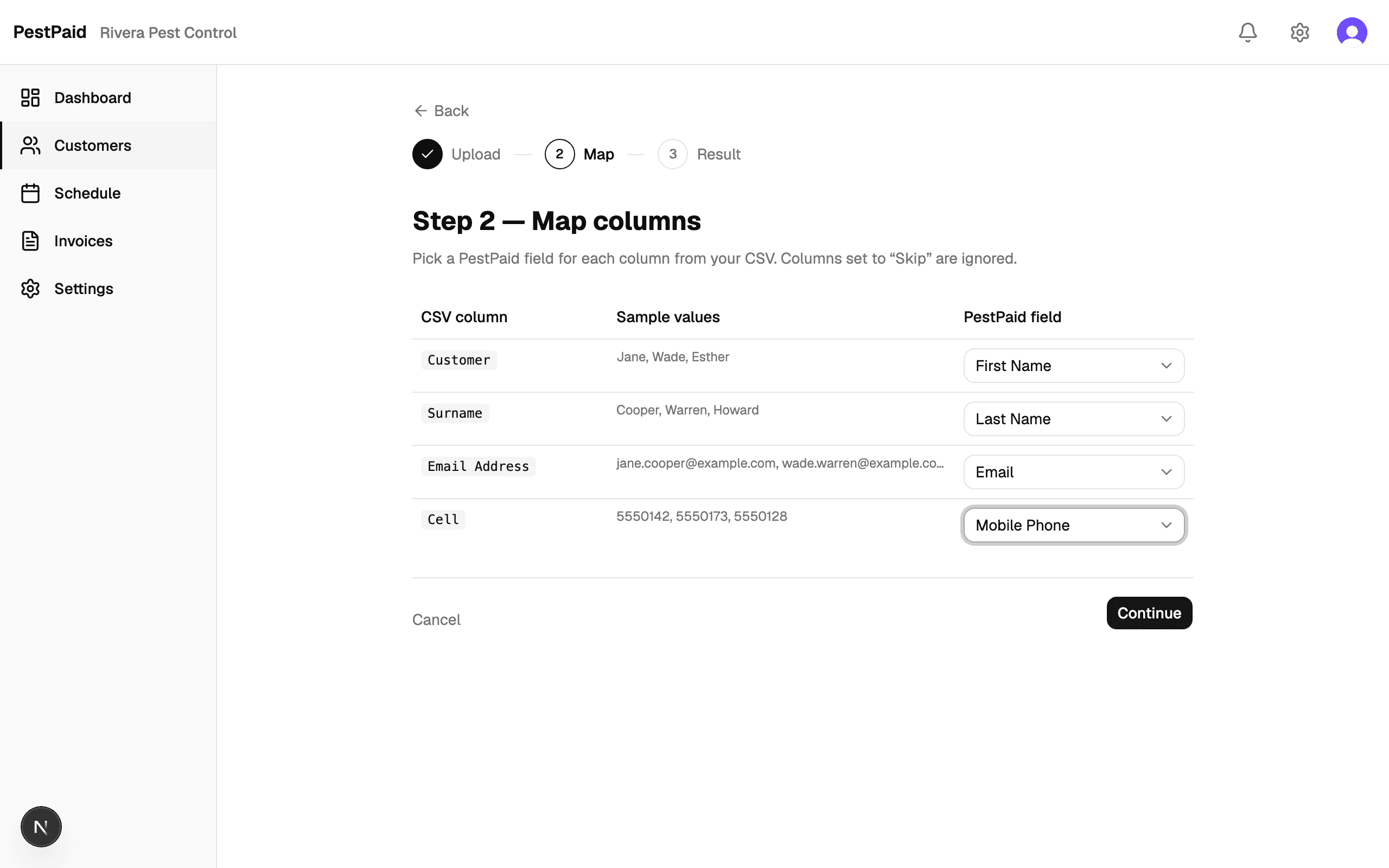
Step 3 — Map your columns
Pick a PestPaid field for each column from your spreadsheet — name, email, phone, address, and more. Columns left on “Skip” are ignored, so you only map what you need.
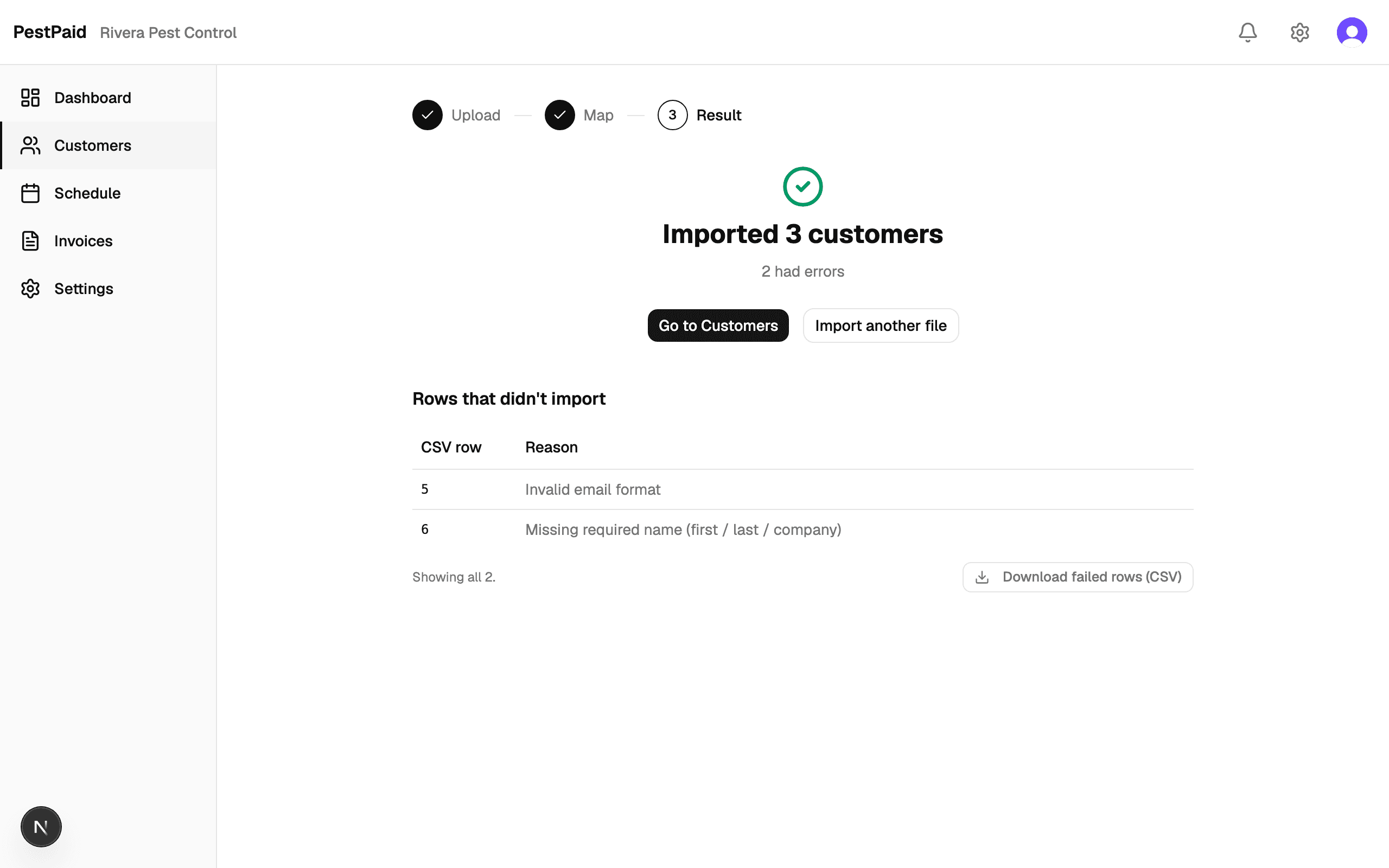
Step 4 — Review the result
PestPaid imports your clean rows and lists any that didn’t import, each with a reason — a missing name, a malformed email or phone, or a country that isn’t a 2-letter code — so you can fix them in your spreadsheet and re-import. Your spreadsheet stays on your hard drive, untouched.
Common questions
- What if my spreadsheet has hundreds of customers?
- PestPaid imports your whole list, free — every valid row, no customer cap. Customers are always unlimited, even on Free. What's metered on Free is the doing: your first 3 invoices and up to 5 upcoming appointments are free, and that's the natural moment to move to Solo ($19/mo) for unlimited invoicing and scheduling.
- What if I have duplicate customers?
- Version 1 imports every row as-is — it doesn’t merge duplicates yet, so de-dupe your spreadsheet before importing. Automatic dedupe by phone, email, or name and postal code is coming.
- Can I undo the import?
- One-click undo isn’t here yet. For now you can delete imported customers individually, or import into a fresh account if you’d rather start over.
- What if my spreadsheet has columns PestPaid doesn’t recognize?
- Leave them on “Skip.” Only map the columns that match a PestPaid field — anything unmapped is ignored on import.